
Two-Factor Authentication Guide
Tech CU strongly encourages you to set up Two-Factor Authentication (2FA) for your digital banking account, particularly using an authenticator app. Suggested apps include Google Authenticator, Microsoft Authenticator, Authy, or Duo.
These verification codes are used when logging in on a new device, linking external accounts, updating contact information, and other functions in digital banking.
Please Note: You will need to have an authenticator app installed and set up on your mobile device.
How to Set Up Two-Factor Authentication
- Login to Tech CU Digital Banking from a desktop computer.
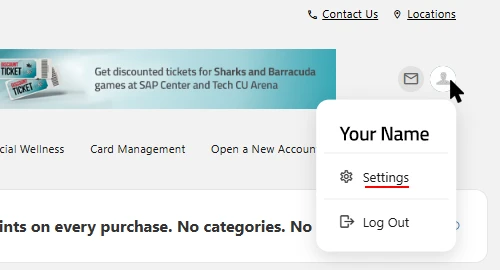
- From the Dashboard, click the profile icon in the top right corner.
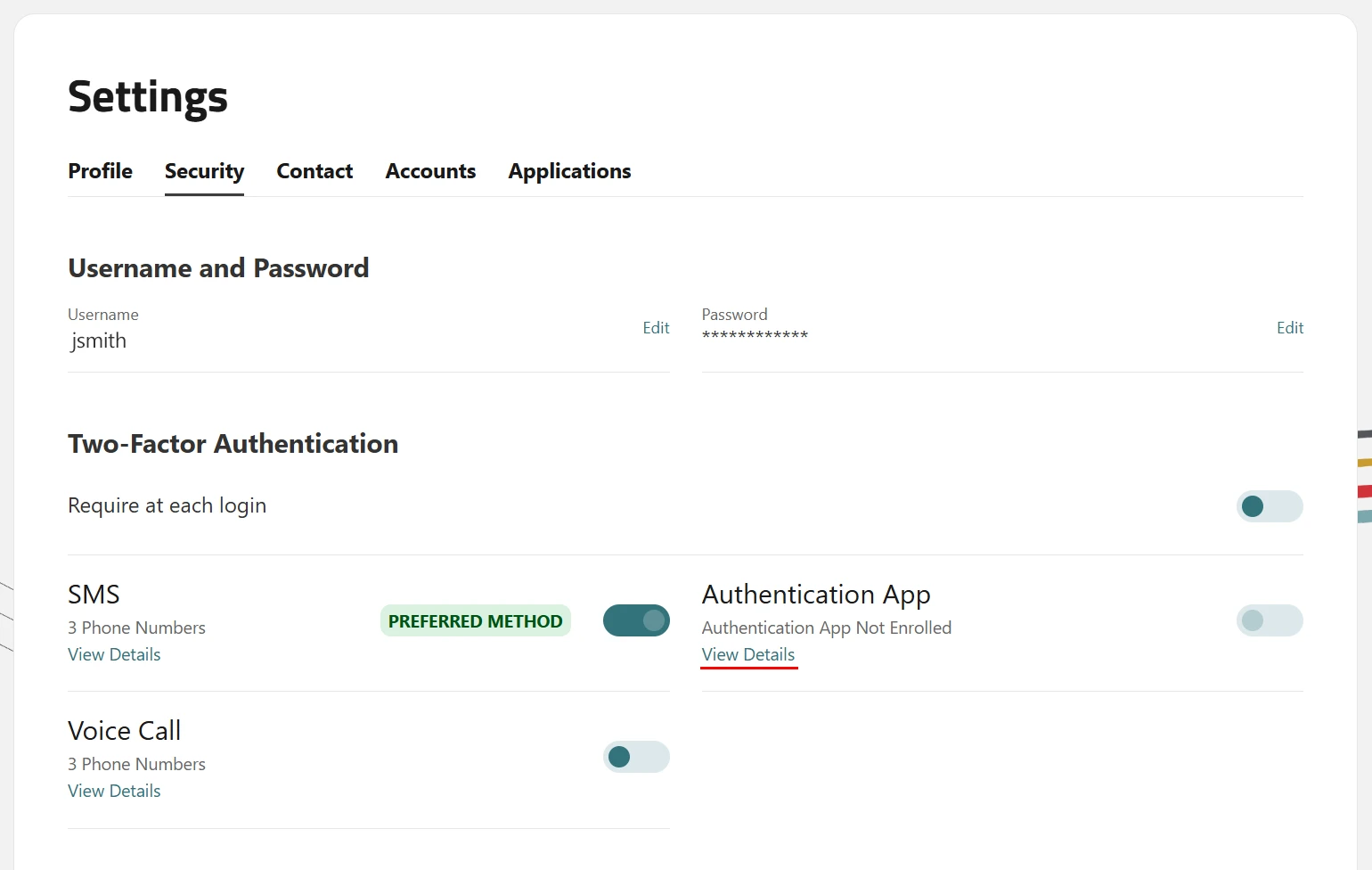
- Select Settings, then navigate to the Security tab.
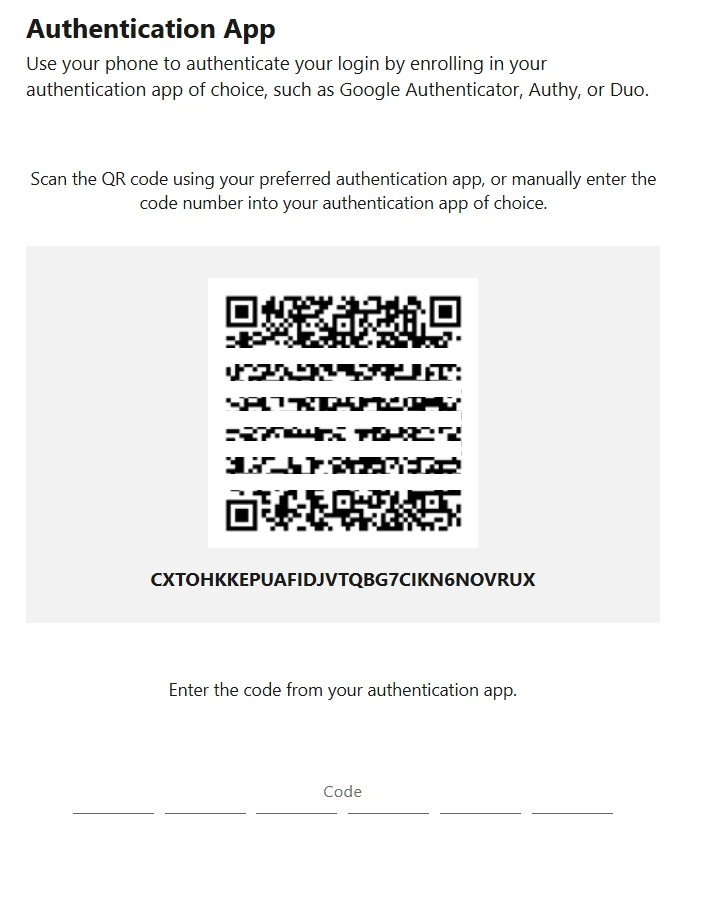
- Click View Details under the Authentication App option. A QR code displays.
- Scan the QR code with the 2FA app installed on your mobile device. The 2FA app
generates a time-based one-time password (TOTP).
- Enter the TOTP code showing on the mobile device into the desktop computer.
- Click Submit.

